
When creating a task in a Project you can also You can also create sub-tasks to further break down the work being done to achieve your project's completion.
Adding and Assigning Subtasks
After creating a new task by clicking on the + New Task at the top right, subtasks can be added and assigned to users by following the steps below:
- Click the 'Add +' in the Subtask section, add as many subtask as required the current task
- Define your Subtask Items
- To add a Subtask owner click on the 'Add Owner' icon and a select from a list of Envisio users
- Repeat to add Subtask Owners to all items and press 'Save'.
Add start and end dates against subtasks
Task and subtask owners can add start and end dates against subtasks. Subtask start and end dates are meant to be within the task (if available) and project timelines. Subtask timelines can overlap within the same task.
- Start and end dates are available against each subtask
- Date picker to select the subtask start/end date
Subtask Notification
- When a Subtask is assigned to a user they will receive an email notification.
- Based on the subtask end date (if available), the weekly digest notification will list subtasks to indicate due soon/overdue status.
If the subtask is assigned to a user who is not part of the task, the system adds the subtask assignee as an observer. This is a collaboration enabler allowing this user to see the project details and they can mark the assigned task as complete .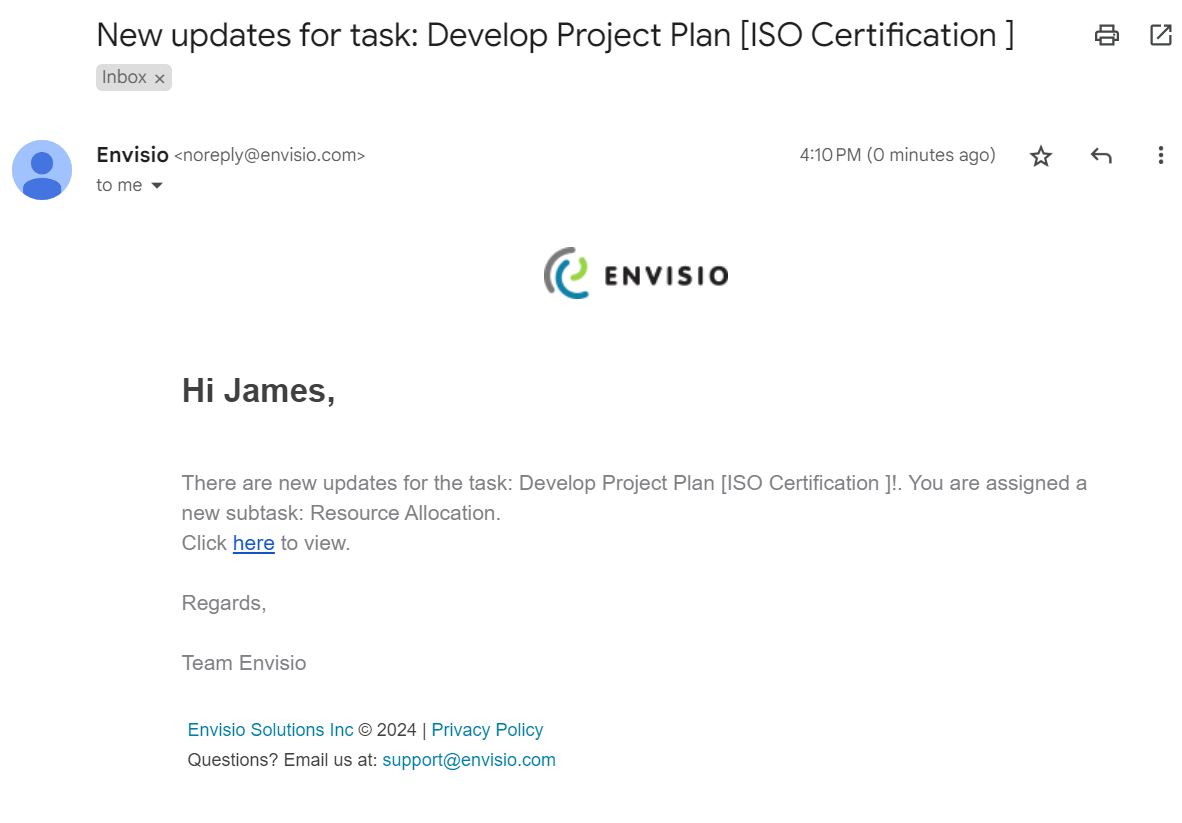
Reordering Subtask
Subtasks can be easily reordered using the ellipsis to left of the checkbox
Removing Subtask Assignees
Subtask assignees can be removed from the subtask by clicking on the user icon and saving the task
Comments
0 comments
Please sign in to leave a comment.