
There are times when an Action impacts one or more mid-level planning elements (Strategy) in an organization either within the same plan or across different plans. An example is an Action within a department plan that aligns to a strategy in a strategic plan. To show this alignment in Envisio, you can clone your Action. Updates to the source Action is reflected across the cloned Actions, so you only need to update once. Cloned Actions can be included in reports.
Clone an Action
Here are the steps to clone an Action:
- From the menu, navigate to View/Edit Plans.

You will be cloning an Action 'in' or 'from' another place in the plan or another plan. Navigating to the place where the cloned Action will be located is the next step.
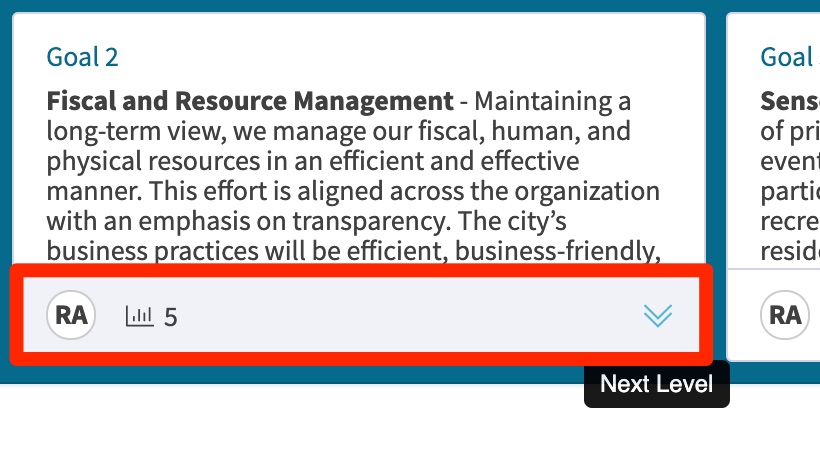
2. Navigate to the lowest level of the plan under the mid-level planning element in which you would like to clone an Action from another mid-level planning element. Clicking on the bottom of a 'card', which is a white rectangle representing a planning element, takes you down to the next level of the plan and all of the planning elements aligned under that higher-level planning element.
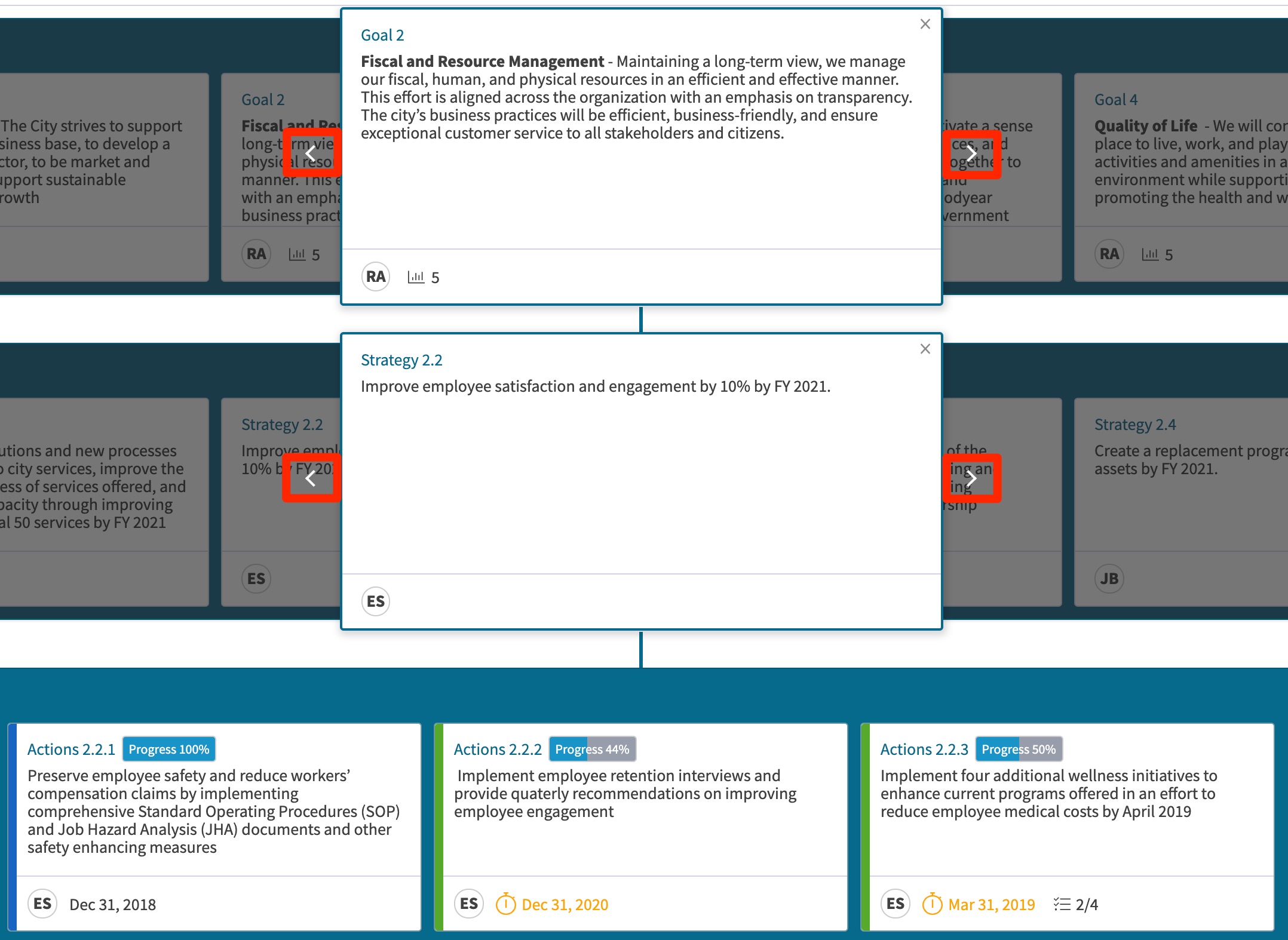
3. Use the arrows that appear on the side of each card to view other planning elements to find the right low-level in which to clone an Action.
4. To clone an Action click on the 3 dots near the right side of the appropriate planning level and select clone.

5. Select the appropriate plan from which you will select the Action to clone and then select the specific Action you want to appear alongside the existing Actions you've navigated to. Then click on confirm.

Selecting 'With Rollup' means that the cloned Action will be included in the calculation for status and progress. By default this feature is turned off.
Comments
0 comments
Please sign in to leave a comment.