
There are three ways to report on your Envisio Projects:
- Reporting on all Projects
- Reporting on an individual Project and tasks
- Reporting on Projects linked to Plans
Reporting on all Projects
Use the Projects listing page to review all existing projects.
- Sort by Project Name, Risk Status, Priority, Owner, Start or End Date, or Project Phase.
- Search by keyword or use the quick filters at top left to filter by Risk Status, Phase, or Project Owner's Department.
- Use the Export all Projects button at top right to export a .CSV file of all Projects with their details such as dates and custom fields.
You can also access the Projects Dashboard using the button at top right. - View the listing in Gantt Chart format and use your browser's Print to PDF function to save a PDF copy of your Projects.
Note:
Completed projects can be filtered out of the list and Gantt chart view by using the Hide Completed option under the 'Risk Status' quick filter.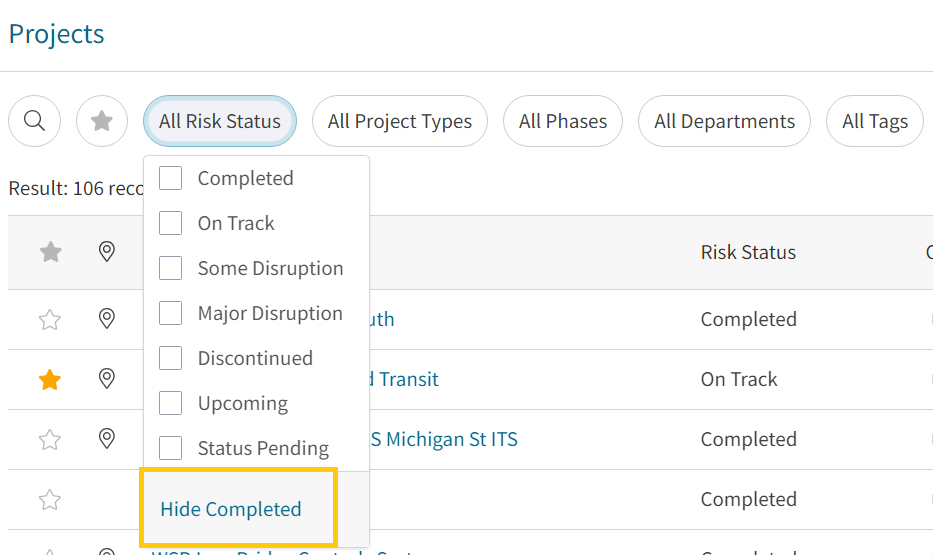
Completed projects can be filtered out of the list and Gantt chart view by using the Hide Completed option under the 'Risk Status' quick filter.
Reporting on an individual Project and tasks
An overview review of an individual Project is also available. This report is a succinct way to see Project details such as budget, dates, task completion, project phases and latest updates.
- Open the Task listing view for a Project
- When in the Task view, near the top right is a 'Generate Report' button
- Clicking this button will open a new tab with the report. This report can be printed to a PDF or the link shared with others.
Reporting on Projects linked to Plans
Use Envisio's robust report builder to report on Projects you've linked to Plans. Use any standard plan-based report and simply filter to show linked projects!
- From the Plans area, use the Plan Selector drop-down to choose the Plan with linked Project(s).
- Navigate to report builder and click + New Report at top right.
- Choose the appropriate report type and standard report you'd like to run. Learn more about Envisio Standard Reports here.
Note that as project linking happens at the lowest level of your plan, you will want to use a standard report that includes that lowest level or else configure the filters to include the lowest level. - In the report's filter panel, click + Add Filter.
- Choose Linked to Project / is / True.
- Click Close.
- Click Apply.
- Preview your report - it will only include your linked Projects.
If you're unfamiliar with Envisio Reporting, please visit our dedicated help center section for more information.
Comments
0 comments
Please sign in to leave a comment.